
SPField

Updating the title within a SPItemEventReceiver with AfterProperties

Recently I had a problem setting the title field of a Page within the pages library. My requirement was to set the title with the value from the PageTitle field of the current item.

An ItemEventReceiver, which is executed synchronously to prevent save conflict exception or problems with published items, was supposed to do exactly that. But when I set the title property of the item via AfterProperties, the value did not get stored. I tried other fields, and they got written to the item just fine. After some trial-and-error and consulting the MSDN I found a solution.
Custom field and UpdateFieldValueInItem()

Recently I was developing a custom field. To store modified values, the UpdateFieldValueInItem method has to be overwritten.

In a normal way of clicking the submit/save button, the method is called and I can adjust the value for the field within the current item. The changes are submitted to the database later.

But what if you want to modify items outside of the current item? Sure, you can do so would you think. But you’ll need to consider the scenario that the user does not click submit/save. The method is called on every postback. The PeoplePicker will cause a postback, when it validates its values. There might be other controls as well, which behave this way.

StaticName != InternalName

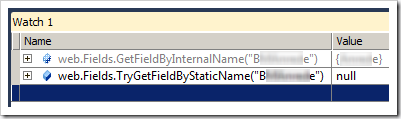
Recently I was trying to fetch a SPField from a SPWeb object. I had SharePoint 2010, so I decided to use the new SPFieldCollection.TryGetFieldByStaticName() Method.

image

You can imagine how surprised I was, that I couldn’t get the field I was looking for. What do we learn? Well, the StaticName of an SPField is not necessarily the InternalName!

Here is a link to the MSDN about SPField.StaticName: http://msdn.microsoft.com/en-us/library/microsoft.sharepoint.spfield.staticname.aspx

Issues in WSS V2

Responses to items in an Issue list (SPListIssue) are new version in WSS V3. WSS V2 lacks the ability to use versions for lists. So what did Microsoft do that an Issue list behaves like it is using versions?

In WSS V2 items in a single “thread” all have different ItemIDs. To group them together, all have the same IssueID. This is the ItemID from the original item.

A single issue in WSS V2 could look like this:

SPQuery, ViewFields and empty fields

If you want your query to return empty columns, you have to add Nullable=’TRUE’ to the viewfields.

If you do not add the Nullable attribute, accessing the results of the query like this:

oListItemAvailable[“Field1”] will give an Exception.

I’ve made posted a comment about this on the page in the MSDN http://msdn.microsoft.com/en-us/library/microsoft.sharepoint.spquery.viewfields.aspx

SharePoint Bug with MultiValue Fields

imageImagine you have a list (or document library) which has lots of items. Nothing fancy here. Now add a lookup or user field and allow it to contain multiple values.

Inside a view for this list you can filter e.g. for the title column. The filter dropdown shows all possible values for the column. image


Here comes the clue. If the item count of the list reaches a number somewhere between 400 and 500 items, the filter dropdown changes. You will get an option to show all filter values. This is for performance reasons.

Programmatically creating a SPFieldCalculated

As you might already know, you can create new fields with SPFieldCollection.AddFieldAsXml(string schema). The schema contains the formula for the calculated field. There are some points to take care of, before you can add the field:

  1. make sure your referenced fieldnames are the display names and not the internal field names
  2. the formula has to be in the English format

Changing the fieldnames is an easy task. If you read the schema from a field and want to create a new one with the same formula, you will get something like “=if(fieldA,1,2)”.

Adding a custom field type via code

Your custom field type can be added to a list in a browser easily. But how do you add a custom field type via code?

Here is my way:

  1. add a new field with the field type from which your custom field type derived
    • change the field type of the new field to your own custom field type
In my case my custom field type derived from a SPFieldLookup.
 
 1: // create new lookup field 
<pre>&lt;font size=2>&lt;span class=lnum>   2:  &lt;/span>&lt;span class=kwrd>string&lt;/span> newFieldName = fields.AddLookup(&lt;span class=str>"fieldname"&lt;/span>, list.ID, web.ID, &lt;span class=kwrd>false&lt;/span>); &lt;/font></pre><pre class=alt><font size=2><span class=lnum> 3: </span>var newField = fields.GetFieldByInternalName(newFieldName);</font> </pre> 

<pre>&lt;font size=2>&lt;span class=lnum>   4:  &lt;/span>&lt;span class=rem>// change field type to our own &lt;/span>&lt;/font></pre><pre class=alt><font size=2><span class=lnum> 5: </span>newField.SchemaXml = newField.SchemaXml.Replace(<span class=str>"Lookup"</span>, <span class=str>"yourFieldType"</span>);</font></pre> </div> 


**Update 4. Feb 2008**

The above solution will bring you a field with the type. But a much smoother way is to create a new field, which has the selected type. This way you don’t need to modify the schema of the field.<div class=csharpcode> <pre class=alt><span class=lnum><font size=2>1: </span>CustomFieldClass field = list.Fields.CreateNewField(<span class=str>"CustomFieldClass"</span>, <span class=str>"The name of the field"</span>);</pre> 

</font>

<pre>&lt;span class=lnum>&lt;font size=2>2:  &lt;/span>list.Fields.Add(field);</pre>

</font></div> 

 <div class=wlWriterEditableSmartContent id="scid:0767317B-992E-4b12-91E0-4F059A8CECA8:cdce64aa-cbde-49c7-a43c-69d782ebcc09" style="padding-right:0px;display:inline;padding-left:0px;padding-bottom:0px;margin:0px;padding-top:0px">Technorati Tags: <a href="http://technorati.com/tag/SharePoint" rel=tag>SharePoint</a>,<a href="http://technorati.com/tag/custom+field+type" rel=tag>custom field type</a></div> </div> </div> </div>

HowTo create an object if you only have its type as string

Sometimes you have only the type of an object, which you want to create. Meaning you want to create an object dynamically. This is how you would achieve your goal:

In my case I wanted to create a SPField from its typename.

 1: string typename = “Microsoft.SharePoint.SPFieldText, Microsoft.SharePoint, “+

<span class=lnum>   2:  </span>    <span class=str>"Version=11.0.0.0, Culture=neutral, PublicKeyToken=71e9bce111e9429c"</span>;
 3: Type t = Type.GetType(typename, true, true);
<span class=lnum>   4:  </span><span class=kwrd>object</span> newObject = System.Activator.CreateInstance(t, 
 5:  BindingFlags.SetProperty, new object[] { fields, "Title" });

I know one constructor for a SPField is to create a new object with the SPFieldCollection and its name.

How to get LookupField Information from a listItem

If you want the ID or the value form a LookupField, you can get it easily with this code snippet:

SPListItem item = getitsomewhare… SPFieldLookupValue lf = (SPFieldLookupValue) item.ParentList.Fields.GetField(_FieldName).GetFieldValue( item.GetFormattedValue(_FieldName));

if you got the field, fetch its properties via

if (lf == null) { int itemID = lf.LookupId; string itemValue = lf.LookupValue; }
Have fun ;-)

Write a SPFieldUser

If you have a list which contains a SPFieldUser field (with multiple selection), you can add users too it with the following code:

using (SPSite site = new
SPSite(“http://site”))

{

using (SPWeb web = site.AllWebs[“Web”])

<span style="font-family:Consolas;font-size:10pt">    {<br /> </span>

   <span style="font-family:Consolas;font-size:10pt">    <span style="color:#2b91af">SPList</span> list = web.Lists[<span style="color:#a31515">"List"</span>];<br /> </span>

    <span style="font-family:Consolas;font-size:10pt">    <span style="color:#2b91af">SPListItem</span> item = list.Items[0];<br /> </span>

    <span style="font-family:Consolas;font-size:10pt">    <span style="color:#2b91af">SPFieldUserValueCollection</span> values = (<span style="color:#2b91af">SPFieldUserValueCollection</span>)item[<span style="color:#a31515">"Users"</span>];<br /> </span>

    <span style="font-family:Consolas;font-size:10pt">    <span style="color:#2b91af">SPUserCollection</span> users = web.AllUsers;<br /> </span>

    <span style="font-family:Consolas;font-size:10pt">    <span style="color:blue">foreach</span> (<span style="color:#2b91af">SPUser</span> user <span style="color:blue">in</span> users)<br /> </span>

    <span style="font-family:Consolas;font-size:10pt">    {<br /> </span>

        <span style="font-family:Consolas;font-size:10pt">        values.Add(<span style="color:blue">new</span><br /> <span style="color:#2b91af">SPFieldUserValue</span>(web, user.ID, user.Name));<br /> </span>

    <span style="font-family:Consolas;font-size:10pt">    }<br /> </span>

    <span style="font-family:Consolas;font-size:10pt">    item[<span style="color:#a31515">"Users"</span>] = values;<br /> </span>

    <span style="font-family:Consolas;font-size:10pt">    item.Update();<br /> </span>

<span style="font-family:Consolas;font-size:10pt">    }<br /> </span>

}